---
title: Navigating the SimpleFLX Phone App
description: SimpleFLX Phone app. (Andriod iPhone) This tutorial will show users how to navigate the SimpleFLX phone application, view and accept shift opportunities, as well as a full display of your accepted work schedule.
---
[Skip to content](https://help.simplevms.com/navigating-the-simpleflx-phone-app#main-content)
English
Show submenu for translations

Open main navigation
Close main navigation
- English
Show submenu for translations
- Contact us
Contact us
How can we help you?
- There are no suggestions because the search field is empty.
1. [Help Center](https://help.simplevms.com/?hsLang=en)
2. [Worker Help](https://help.simplevms.com/worker-help?hsLang=en)
3. [SimpleFLX](https://help.simplevms.com/worker-help?hsLang=en#simpleflx)
# Navigating the SimpleFLX Phone App
## This guide will walk you through downloading and installing the SimpleFLX app, finding open opportunities, accepting shifts, and viewing your scheduled work.
**Watch the video here:**
**Step-by-step instructions:**
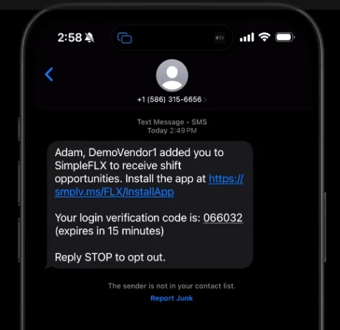
1\. When your agency adds you to a SimpleFLX labor pool, you will receive a text message with a link that will take you to the app store to download and install the SimpleFLX app.
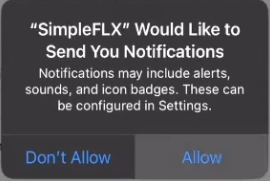
2\. Now that the SimpleFLX app is installed, open the app and make sure to **allow notifications**, so when you have new shifts available you will be alerted, you can also allow calendar access to automatically add accepted shifts to your calendar.
**Allow Notifications:**
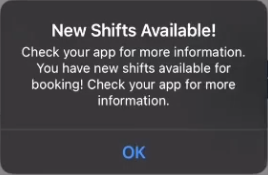
**Receive Alerts about New Shifts!**
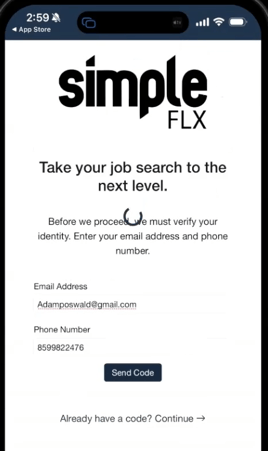
3\. Enter your **email address** and **phone number** and press send code, you will receive a code to the email and phone number provided, enter the code you received and press logon.
4\. **SimpleFLX Home Screen** will show you at a glance how many shifts you have accepted, and how many open shifts are available, as well as your profile information.
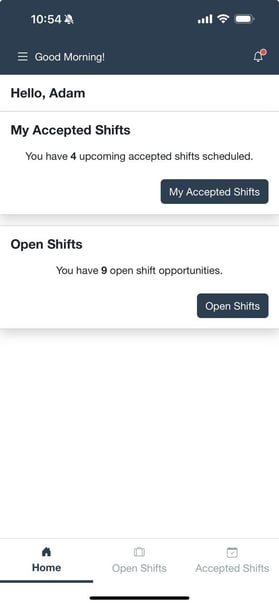
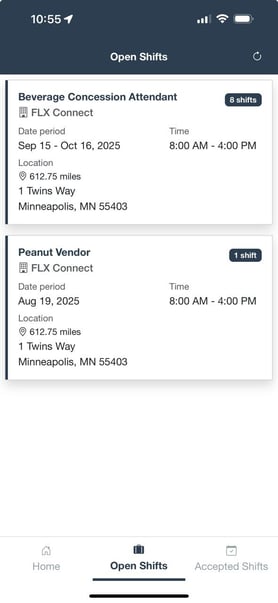
5\. The **Open Shifts** tab will display all available shifts, simply press the desired job to view job details and shift schedules.
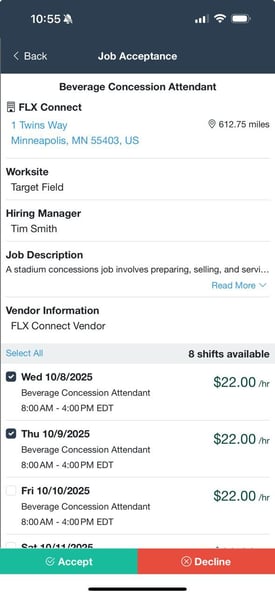
6\. To accept a shift, Press the **Checkbox** next to the desired shift schedule(s) and press "Accept" or "Decline" once any shifts are accepted, you can view them from the **Accepted Shifts** tab.
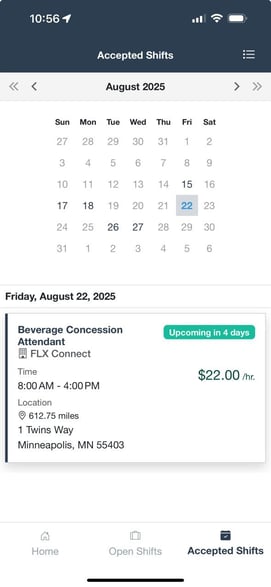
7. **Accepted Shifts** will display your schedule based on the shifts you have accepted, press on any highlighted day to view schedule details for that day.
- [Client Help](https://help.simplevms.com/client-help?hsLang=en#main-content)
- [Vendors](https://help.simplevms.com/client-help?hsLang=en#vendors)
- [Candidates](https://help.simplevms.com/client-help?hsLang=en#candidates)
- [Reports](https://help.simplevms.com/client-help?hsLang=en#reports)
- [Invoices](https://help.simplevms.com/client-help?hsLang=en#invoices)
- [Job Titles](https://help.simplevms.com/client-help?hsLang=en#job-titles)
- [Dashboards](https://help.simplevms.com/client-help?hsLang=en#dashboards)
- [Workers](https://help.simplevms.com/client-help?hsLang=en#workers)
- [SimpleFLX](https://help.simplevms.com/client-help?hsLang=en#simpleflx)
- [Teams](https://help.simplevms.com/client-help?hsLang=en#teams)
- [Job Postings](https://help.simplevms.com/client-help?hsLang=en#job-postings)
- [Admin](https://help.simplevms.com/client-help?hsLang=en#admin)
- [Time & Expenses](https://help.simplevms.com/client-help?hsLang=en#time-expenses)
- [Home](https://help.simplevms.com/client-help?hsLang=en#home)
- [Report Guides](https://help.simplevms.com/client-help?hsLang=en#report-guides)
- [Vendor Help](https://help.simplevms.com/vendor-help?hsLang=en#main-content)
- [Job Postings](https://help.simplevms.com/vendor-help?hsLang=en#job-postings)
- [Workers](https://help.simplevms.com/vendor-help?hsLang=en#workers)
- [Invoices](https://help.simplevms.com/vendor-help?hsLang=en#invoices)
- [Reports](https://help.simplevms.com/vendor-help?hsLang=en#reports)
- [SimpleFLX](https://help.simplevms.com/vendor-help?hsLang=en#simpleflx)
- [Submitted Candidates](https://help.simplevms.com/vendor-help?hsLang=en#submitted-candidates)
- [Applicants](https://help.simplevms.com/vendor-help?hsLang=en#applicants)
- [Dashboard](https://help.simplevms.com/vendor-help?hsLang=en#dashboard)
- [Time & Expenses](https://help.simplevms.com/vendor-help?hsLang=en#time-expenses)
- [Admin](https://help.simplevms.com/vendor-help?hsLang=en#admin)
- [Clients](https://help.simplevms.com/vendor-help?hsLang=en#clients)
- [Home](https://help.simplevms.com/vendor-help?hsLang=en#home)
- [Contact Us](https://help.simplevms.com/contact-us?hsLang=en)
- [SimpleVMS + Avionté Integration](https://help.simplevms.com/simplevms-aviont%C3%A9-integration?hsLang=en)
- [Worker Help](https://help.simplevms.com/worker-help?hsLang=en#main-content)
- [Time Off Request](https://help.simplevms.com/worker-help?hsLang=en#time-off-request)
- [Web Punching](https://help.simplevms.com/worker-help?hsLang=en#web-punching)
- [SimpleFLX](https://help.simplevms.com/worker-help?hsLang=en#simpleflx)
- [SimpleVMS KB](https://help.simplevms.com/simplevms-kb?hsLang=en)
[](https://simplevms.com?hsLang=en)
[mailto:email@email.com](mailto:email@email.com)
Copyright © 2026, SimpleVMS
```json
{
"@context" : "https://schema.org",
"@type" : "VideoObject",
"caption" : {
"@type" : "MediaObject",
"contentUrl" : "https://help.simplevms.com/media-transcripts/194710882115/en.vtt",
"inLanguage" : "en",
"name" : "en Captions"
},
"contentUrl" : "https://stream.mux.com/heZZiARedHZMtVVbjnuBJOJxo8Ib01G6WQPAlwXRFywA/capped-1080p.mp4",
"dateModified" : "2025-08-18T16:10:52.329Z",
"duration" : "PT49S",
"height" : 1080,
"name" : "SimpleFLX Phone App",
"thumbnailUrl" : "https://21629475.fs1.hubspotusercontent-na1.net/hubfs/21629475/SimpleFLX%20Phone%20App.mp4/medium.jpg",
"uploadDate" : "2025-08-18T16:05:55.105Z",
"width" : 1920
}
```